StoryShape 1.0 · User guide
Publish
User guide Part 8 of 13
Publish turns a finished book into the files you upload to a store, a print-ready paperback interior PDF and an EPUB 3 ebook, without changing a word of your manuscript.
Before you start
Open Publish from the footer tabs, or press Ctrl+7.
Publish works on one book at a time. Choose the book in the top bar or the BOOKS list in the library. It uses the book’s included scenes, in manuscript order, with chapters and parts as you’ve arranged them in Write.
A few things help before you publish:
- Name your chapters in Write the way you want them printed. Publish adds the numbers.
- Use parts (a container with the Part role) if your book has them. Each part gets its own page.
- Leave out anything that shouldn’t be in the book by unticking Include in manuscript.
- Resolve open revision tasks, or know which ones you’re leaving.
Publishing settings are saved with each book and save themselves as you go. Your manuscript is never changed: curly quotes, scene breaks and chapter numbers are applied only to the files you export.
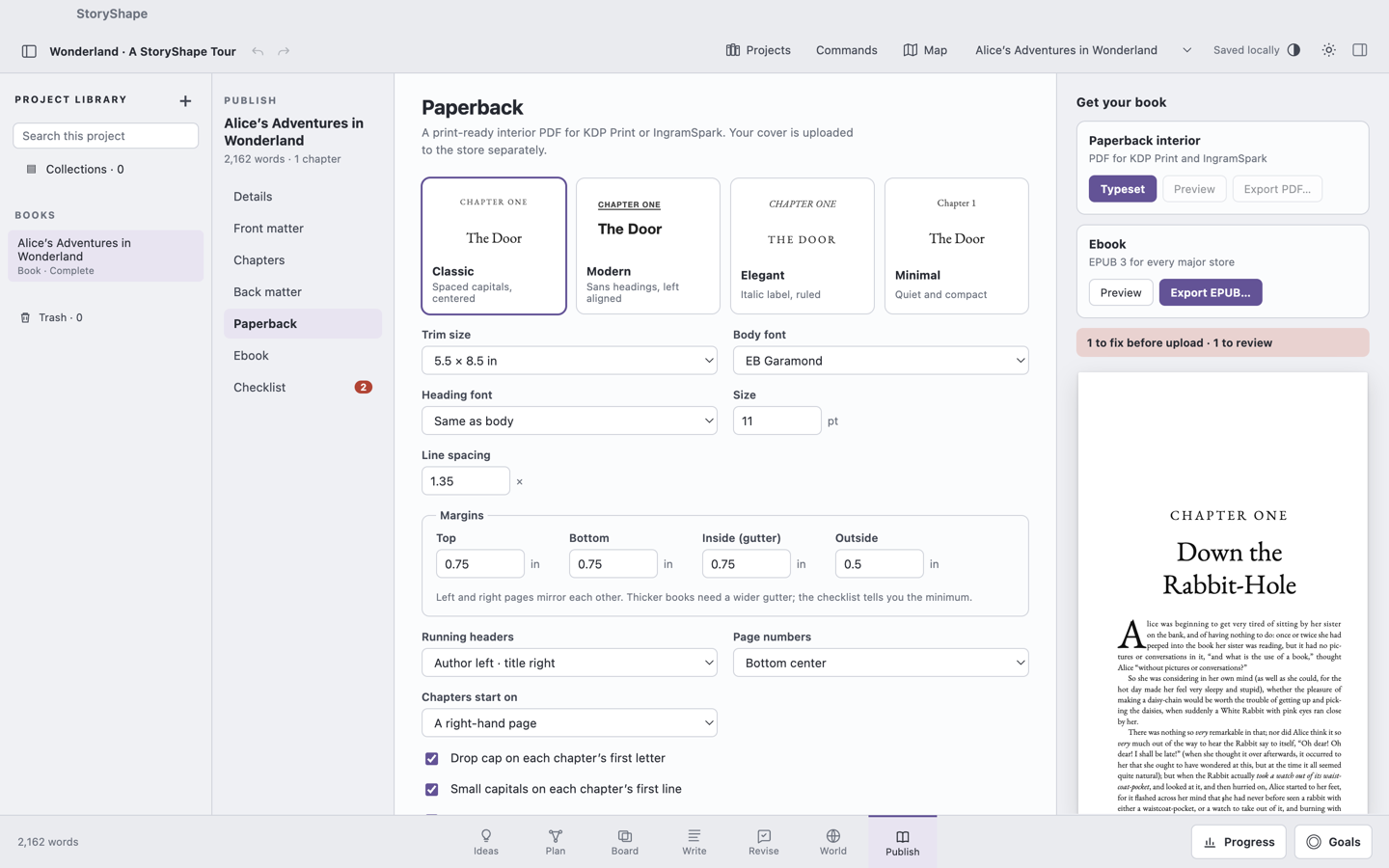
The sections on the left are:
- Details — what stores, the title page and the copyright page say.
- Front matter — pages before the story.
- Chapters — how chapter openings and scene breaks look.
- Back matter — pages after the story.
- Paperback — the print interior.
- Ebook — the EPUB.
- Checklist — what to fix, or know, before you upload.
Get your book, on the right, has the export buttons and a live preview of the first chapter opening.
Details
| Field | Notes |
|---|---|
| Title, Subtitle | The title starts as the book’s name |
| Author or pen name | Printed on the title page and in running headers |
| Copyright holder | Leave empty to use the author |
| Series, Number in series | Printed on the title page as “Series · Book 2” |
| Publisher or imprint | Optional |
| Publication year, Edition | The year starts as this year |
| Language code | Such as en, en-GB, fr or es. Used for hyphenation and the ebook |
| Ebook ISBN, Paperback ISBN | Optional. StoryShape checks the digits as you type |
| Description | The blurb stores show beside your cover. Kindle allows 4,000 characters |
| Keywords | Up to seven, as you’ll enter them in KDP |
| Categories you plan to choose | A note for yourself; stores ask for categories during upload |
ISBNs. An ISBN is optional for KDP, which can assign a free ASIN or ISBN. If you use your own, the ebook and paperback need different ones. StoryShape accepts ISBN-13 (starting 978 or 979) and ISBN-10, with or without hyphens.
Front matter
- Title page — title, subtitle, series, author and publisher. On by default.
- Copyright page — on the back of the title page. On by default. Tick Include the work-of-fiction notice for the standard fiction disclaimer, or write your own in Custom copyright page. The standard page includes the copyright line, an all-rights-reserved notice, your ISBNs, the edition and the publisher.
- Dedication — leave empty to leave it out.
- Epigraph and Epigraph source — leave empty to leave it out.
- Table of contents — titled “Contents”, with page numbers in the paperback and links in the ebook. On by default.
In the paperback, each front-matter page starts on a right-hand page, except the copyright page.
Chapters
- Chapter numbers — Chapter One, Chapter 1, One, 1, or No numbers. Spelled-out numbers are in English; for other languages, numerals are used.
- Scene break — the mark between scenes in a chapter: ❦, * * *, ⁂, • • •, Blank line, or Custom (type your own).
- Show chapter titles — prints the title beside the number. A title like “1. The Door” prints as “The Door”, since the number is added for you.
- Typographic punctuation — prints curly quotes, an em dash for
--, and an ellipsis for three dots. - Show _underscored_ and *starred* words in italics — for text typed in plain-text style.
Chapters named Prologue, Epilogue, Interlude, Foreword or Afterword are never numbered. Neither are Preface, Introduction, Coda or Postscript.
If your manuscript already has a line of asterisks or a similar mark between scenes, Publish replaces it with the scene break you chose. The Chapters section also lists your book’s parts and chapters with their word counts, so you can check the structure.
Back matter
- Acknowledgments
- A note to readers — thank readers, ask for a review, or point them to your newsletter.
- About the author
- Also by the author — one title per line, printed as a list.
Each page appears only if it has text.
Paperback
Interior theme
Choose how chapter openings look:
- Classic — spaced capitals, centered.
- Modern — sans-serif headings, left aligned.
- Elegant — an italic label with a short rule.
- Minimal — quiet and compact.
Trim size
The trim size is the size of the printed page. StoryShape offers 5 × 8 in, 5.25 × 8 in, 5.5 × 8.5 in (the default), 6 × 9 in, 6.14 × 9.21 in, A5 · 5.83 × 8.27 in and 7 × 10 in. Choose the same trim size when you set up the book in the store.
Fonts
- Body font — any of the 23 included fonts, or Times New Roman, Courier or Georgia. EB Garamond is the default.
- Heading font — Same as body, or a different font for chapter heads, part pages and the title page. Cinzel or Playfair Display make good headings.
- Size — 8 to 16 pt (default 11). Most novels use 10–12 pt.
- Line spacing — 1 to 2 (default 1.35).
The included fonts are built into the PDF, so it prints the same on any printer.
Margins
Set Top, Bottom, Inside (gutter) and Outside, in inches. Left and right pages mirror each other, so the inside margin is always by the spine. Thicker books need a wider gutter; the checklist tells you the minimum for your page count.
Running headers and page numbers
- Running headers — Author left · title right (default), Title left · chapter right, or None. Headers never appear on the first page of a chapter or section.
- Page numbers — Bottom center (default), Top outside corner, or None. Front matter isn’t numbered, and the story starts at page 1 on a right-hand page.
- Chapters start on — A right-hand page (traditional; blank pages are added where needed) or The next page (fewer pages).
Finishing touches
- Drop cap on each chapter’s first letter — a large initial three lines tall.
- Small capitals on each chapter’s first line.
- Justify text — even right edges.
- Hyphenate — breaks long words at the end of lines using hyphenation patterns for the book’s language (about 80 languages), the same on every computer. Hyphenation applies to the paperback only.
All four are on by default.
Typeset and export the PDF
- In Get your book, under Paperback interior, choose Typeset. StoryShape lays out every page. A long book can take a little while.
- When it’s done, the card shows the page count and file size. Choose Preview to page through the result.
- Choose Export PDF…, choose where to save it, and choose Export. The file is named “Your Title — paperback.pdf”.
If you change anything after typesetting, the card says Changed since typesetting. Choose Typeset again before exporting; StoryShape won’t export an out-of-date PDF.
Proof it. Preview the whole PDF before you upload, and order a printed proof copy from the store if you can. Check chapter openings, the table of contents, and any page with unusual formatting.
Ebook
The ebook is an EPUB 3 file that works with Kindle (KDP), Apple Books, Kobo, Google Play and Draft2Digital.
Readers choose their own font and size, so an ebook has no trim, margins or page numbers. Chapters, parts and back matter become the reading app’s table of contents.
- Cover — choose Choose cover… and pick your finished cover, a JPEG or PNG up to 32 MB, ideally 1600 × 2560 pixels. Replace cover… and Remove change it.
- Chapter heading style — Classic, Modern, Elegant or Minimal.
- Drop cap on each chapter’s first letter — off by default, because some reading apps draw drop caps poorly.
- Small capitals on each chapter’s opening words — on by default.
Then, under Ebook in Get your book:
- Choose Preview to read the ebook in a window.
- Choose Export EPUB…, choose where to save it, and choose Export. The file is named “Your Title.epub”.
The EPUB includes your book details (title, author, language, description, keywords, series and ISBN) for stores to read.
The upload checklist
Checklist lists what to fix before you upload, most serious first. The badge on Checklist counts the problems, and the summary in Get your book says, for example, “1 to fix before upload · 1 to review”.
Must fix (marked !):
- a missing title or author;
- nothing to publish (no included scenes, or the book is excluded);
- an ISBN that isn’t valid, or the same ISBN on both editions;
- fewer than 24 pages (KDP and IngramSpark’s minimum) or more than 828 pages;
- an inside margin below the minimum for the page count;
- an outside margin under 0.25 in.
Worth reviewing (marked ▲):
- no description, or a description over Kindle’s 4,000 characters;
- chapters with no text;
- placeholder text such as TODO, TK or [[…]];
- open revision tasks in this book;
- a body size under 9 pt.
Good to know (marked i): no keywords yet, excluded scenes, straight quotes, double spaces, or no ebook cover.
When there’s nothing to fix or review, it says Ready to publish.
Before typesetting, the page count is an estimate (“about 312 pages”). After typesetting, it’s exact.
Inside margin minimums
The checklist uses KDP’s minimum inside margins for paperbacks:
| Page count | Minimum inside margin |
|---|---|
| Up to 150 pages | 0.375 in |
| 151–300 pages | 0.5 in |
| 301–500 pages | 0.625 in |
| 501–700 pages | 0.75 in |
| More than 700 pages | 0.875 in |
StoryShape’s default inside margin is 0.75 in, which suits most novels.
Upload to the stores
StoryShape makes your interior files. You set up the book, upload the files, and publish in each store’s own website.
Paperback: KDP Print or IngramSpark
- Export the paperback PDF.
- In the store, create a paperback and choose the same trim size you chose in StoryShape.
- StoryShape’s interior has no bleed (nothing prints to the edge of the page), so choose the no-bleed option if the store asks.
- Upload the PDF as the interior (KDP calls it the manuscript).
- Upload your cover separately. Print covers include the spine and back cover, and the spine width depends on your final page count, so give your cover designer the page count from the typeset PDF.
- Use the store’s previewer, then order a proof.
Ebook: Kindle, Apple Books, Kobo, Google Play, Draft2Digital
- Export the EPUB.
- Upload the EPUB as the ebook’s manuscript or content file.
- Upload the cover image where the store asks for it. Kindle takes the cover separately; Apple Books, Kobo and Google Play can also read the cover inside the EPUB.
- Copy your description, keywords and categories from Details into the store’s listing.
Store requirements change from time to time, so check each store’s current help pages before you publish.
Covers
StoryShape doesn’t design covers. Work with a cover designer, or a cover tool you like, and ask for:
- an ebook cover: a JPEG or PNG, ideally 1600 × 2560 pixels, to add in Ebook;
- a print cover: a PDF made to the store’s template for your trim size and final page count, uploaded straight to the store.
Publishing tips and fixes
- The checklist says the book has nothing to publish. Check that the book and its scenes are ticked Include in manuscript in Write.
- A chapter number appears twice. Remove the number from the chapter’s title in Write (“1. The Door” becomes “The Door”), or turn off Show chapter titles.
- A chapter isn’t where you expect. Publish follows manuscript order. Reorder in Write’s library. A scene that sits directly in a book or part, outside any chapter, becomes a chapter of its own.
- The margins are refused. The text area must stay at least 2.5 in wide and 4 in tall. Reduce the margins or choose a larger trim.
- Export PDF is greyed out. Typeset first, or typeset again after a change.
- The project is read-only. You can still preview and export. To change settings, make an editable copy.